Getting started guide
Not sure where to start? You've come to the right place.
Build your menu
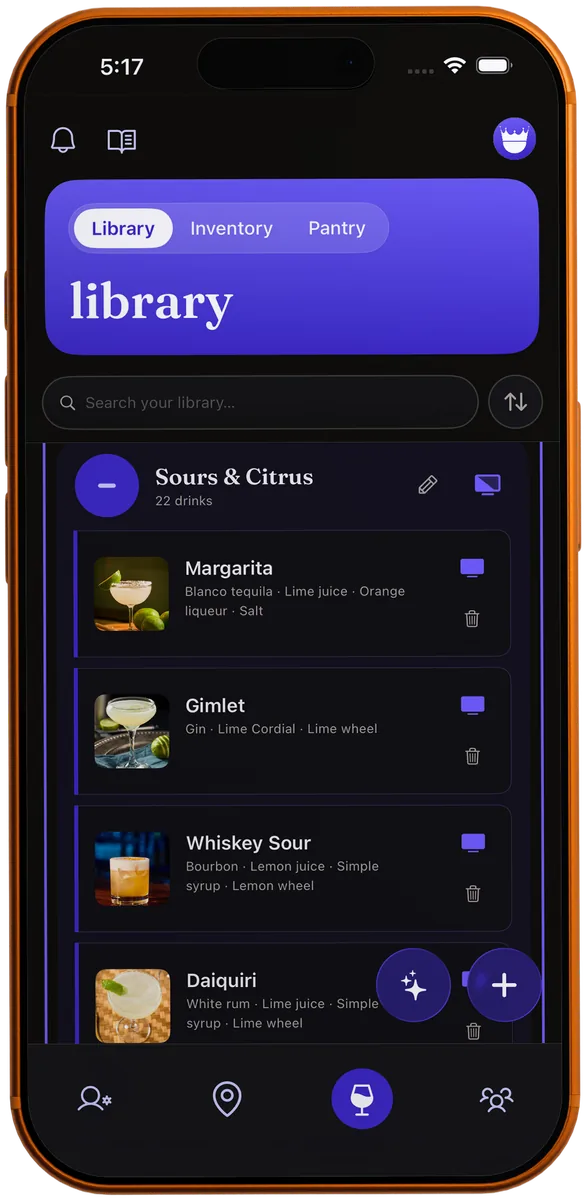
Everything starts in your Library, on the My Bar tab. That's where you build and keep your menu, and it's always editable: change a drink, a shelf, or the whole look any time, and any TV you've paired updates on its own.
Add your drinks
Tap the plus button. Name, ingredients, a short description, glassware and garnish, as much or as little as you like.
Group into shelves
Organize your drinks onto shelves. Sours & Citrus, Spirit-Forward, Zero-proof, whatever fits, the way a bar arranges its board.
Choose what goes on the TV
The TV icon on a shelf puts the whole shelf on the display. The one on a drink toggles just that drink, so a shelf can be on the board without every drink on it.
Import a recipe
Found a drink you love in a book, on a bar menu, or in a screenshot? Use AI import to scan it and add it to your Library.
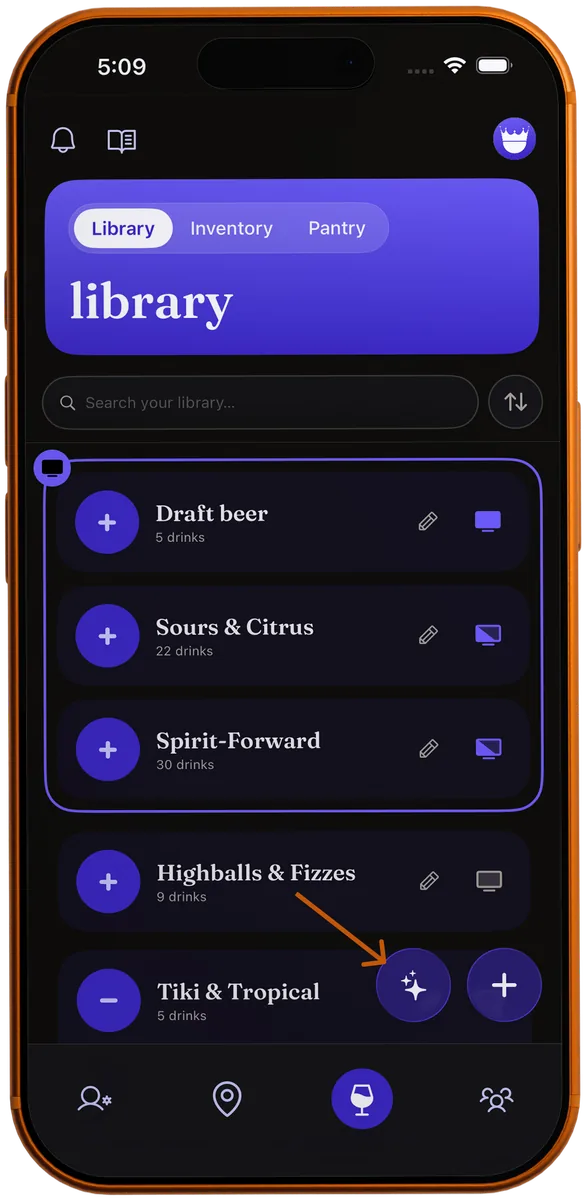
- In your Library, tap the sparkle button next to the plus button.
- Snap a photo of the recipe, pick a screenshot from your camera roll, or paste the text. Spread across a few shots? Select them all and they're stitched into one recipe.
- AI import pre-fills a new drink, ingredients, steps, the works. Review it, tweak anything, and save it to a shelf.
Set up your display
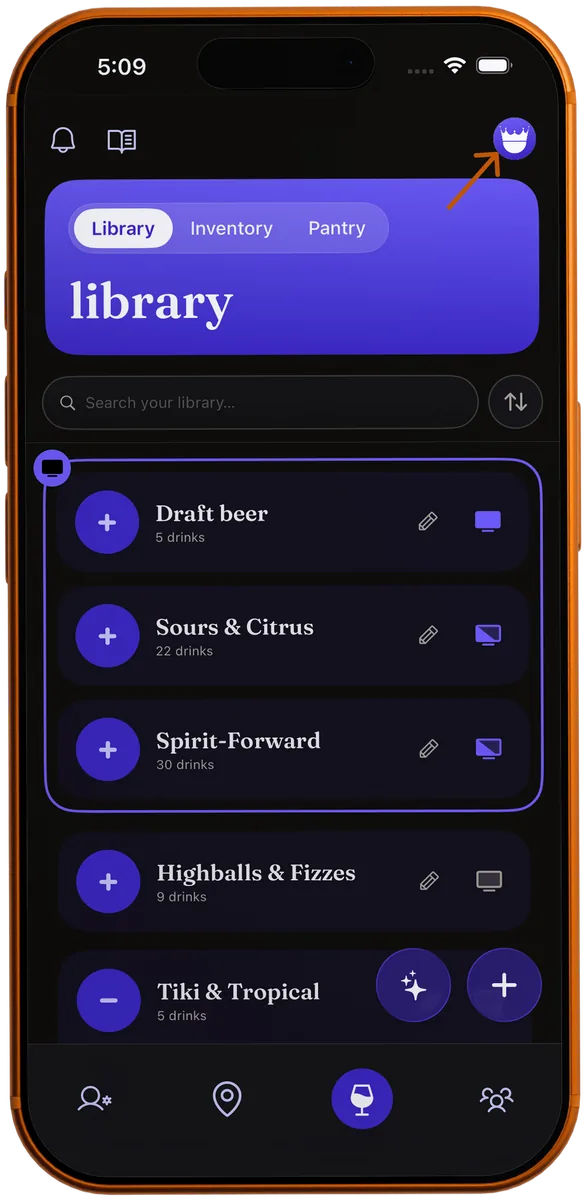
You choose exactly how the board looks, and none of it changes the menu in your Library. Tap your avatar in the top-right corner and, under Display, open Settings. The Display Configuration screen has three tabs:
Settings
Layout and behavior: how many columns the board uses, the text size, and whether it scrolls or holds each screen, so it fills your TV nicely.
Brand
Your menu's identity: its name & tagline, your logo, and the font it's set in, plus sliders to size the header and leave more room for drinks.
Styles
The look: pick a preloaded background or upload your own, shift its hue, and tune how the drink cards and the overlay are tinted over it.
Cast to Apple TV, Fire TV, or Chromecast
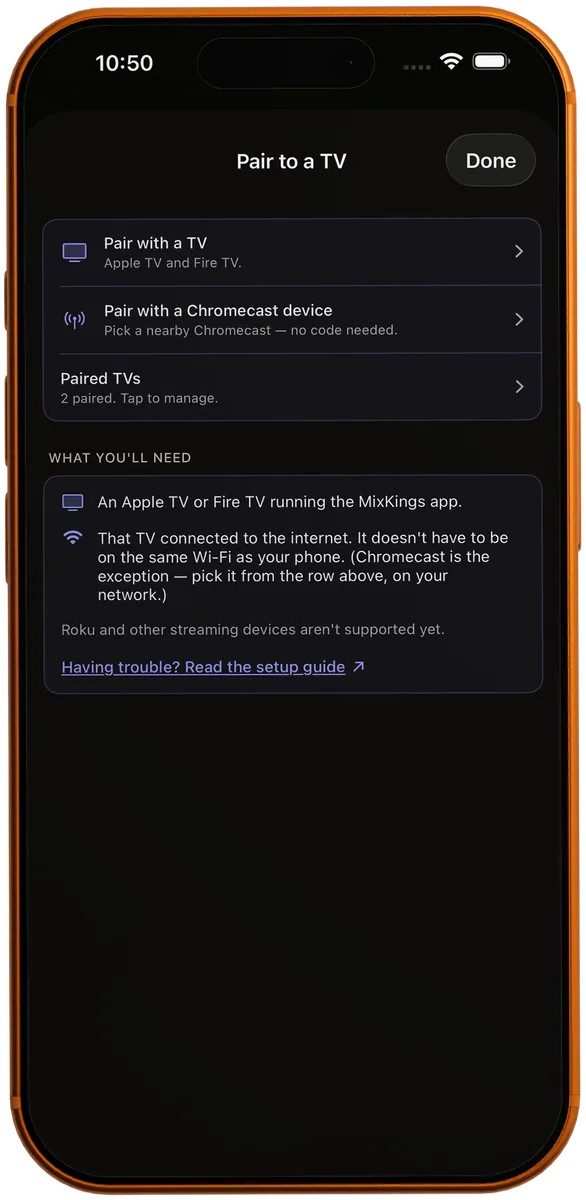
MixKings has a native app on Apple TV and Amazon Fire TV, and a receiver for Chromecast. Tap your avatar, choose Pair a TV under Display, and take the route that matches your screen.
Apple TV or Fire TV
Install MixKings on the TV, from the App Store on Apple TV or the Amazon Appstore on Fire TV, and open it. It shows a 6-digit pairing code. On your phone, tap Pair with a TV, enter the code, and tap Pair. From then on the TV remembers your account and shows your live menu every time it opens. It only needs an internet connection, not the same Wi-Fi as your phone.
Which Fire TV devices. The app runs on the Fire TV Stick 4K, 4K Plus and 4K Max, and the Fire TV Cube. The Fire TV Stick 4K Select and the Fire TV Stick HD run Amazon's new Vega OS, which can't install it yet, so if you're buying a stick for MixKings, pick the 4K Max.
Chromecast or Google TV
Put your phone on the same Wi-Fi network as the Chromecast, tap Pair with a Chromecast device, and pick it from the list. No code needed. Your menu appears on the TV and updates live. Open the same row again to stop casting.
Share & discover in Rooms
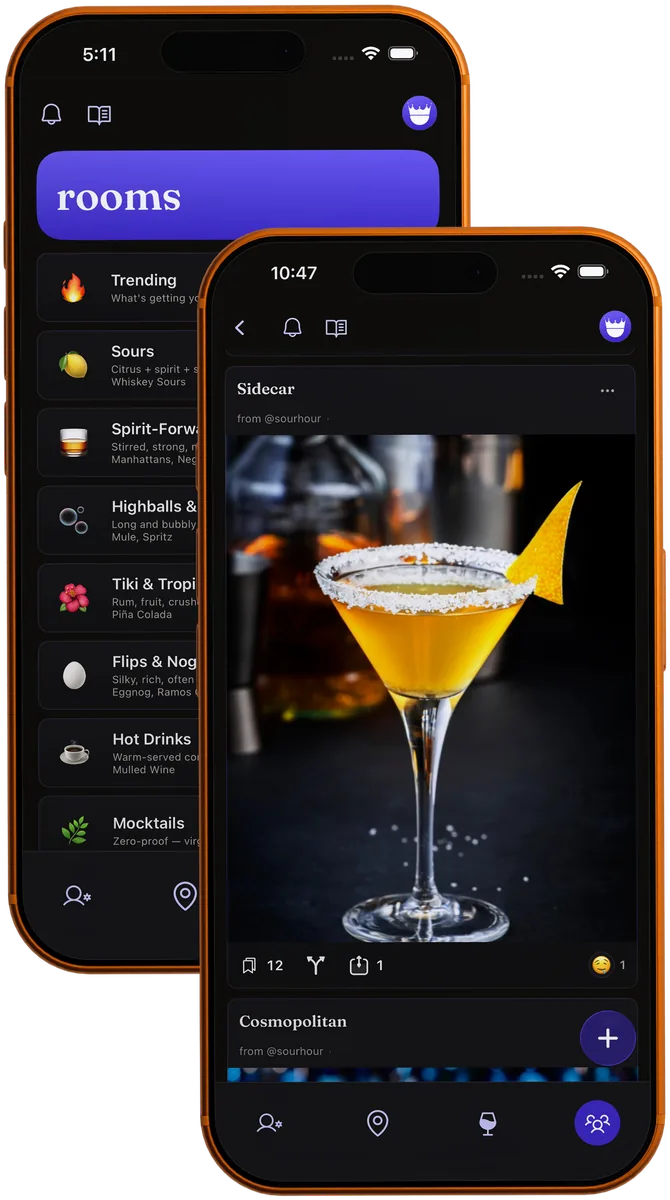
Rooms are shared feeds, one per style of drink, where people post what they're mixing. Show off one of your own, see what everyone else is pouring, and save any recipe you like straight into your Library.
- Open the Rooms tab and pick a room: Sours, Spirit-Forward, Tiki & Tropical, Mocktails and more. Tap any drink to read the full recipe.
- See one you like? Tap Save to keep a copy in your Library, pick a shelf, and it's yours to pour. Tap Riff to build your own take on it, with the original credited.
- To share your own, open one of your drinks, tap Share, and pick a Room. You can also tap the plus button inside any room.
- Right after you post, you can send it on to Reddit or X, or anywhere else through your phone's share sheet. The post links back to your recipe.
Send a drink in Messages
Want to send a recipe to one person instead of a whole Room? Share any drink straight into a chat, and they can save it to their own Library in a tap.
Share to a chat
Open a drink, tap Share, and pick a contact or group. It arrives as a card they can open and read in full.
Save what you're sent
Got a drink from a friend? Tap Save to library, choose a shelf, and it's added to your own menu, ready to pour, riff, or put on the TV.
Build your taste profile
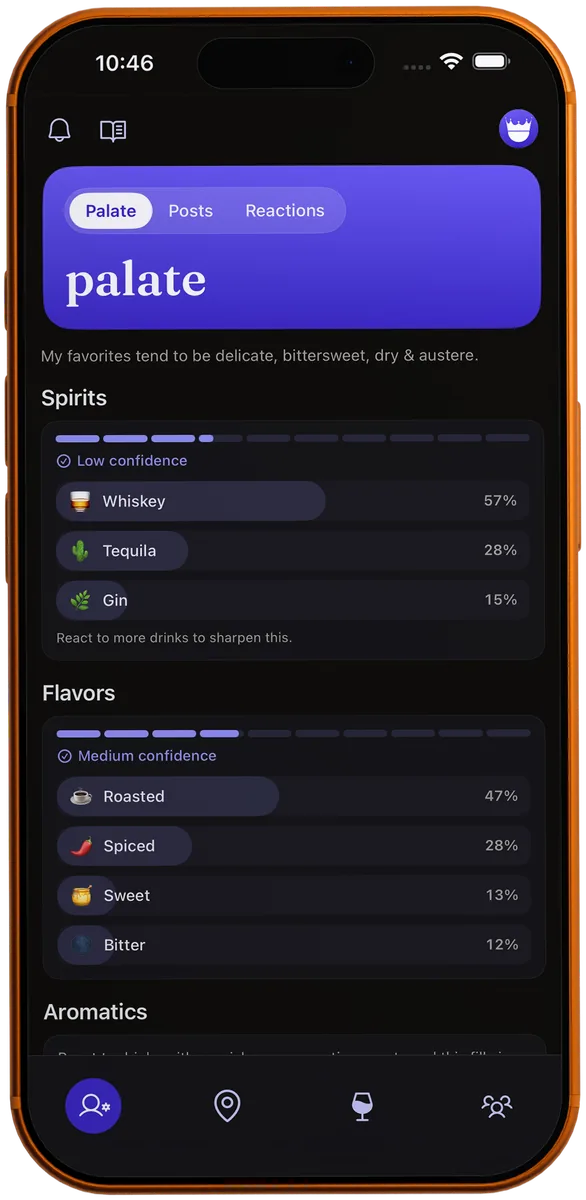
The more you react to drinks in Rooms, the more MixKings learns what you like. Your Palate turns those reactions into a private read on the spirits, flavors, and aromatics you lean toward. Yours only, never shared.
- Open the Activity tab, the first one in the bar, and choose Palate. Tap Build my taste profile to switch it on. It's off until you do.
- Keep using MixKings as usual. Reacting to drinks in Rooms is what shapes it.
- Come back to Palate any time to see where you land. It sharpens from "low confidence" to a confident read as you go, and once it knows you, it suggests drinks to try.
Troubleshooting
The quick fixes for the things that come up most.
The TV code expired before I could enter it
The TV shows a code but never connects
My menu isn't updating on the TV
My Chromecast doesn't show up in the list
The logo or title is too big (or too small) on the TV
My TV dims or goes to sleep after a while
More questions? Read the full FAQ →
Still stuck? We'll help.
Thanks! We got it.
We'll be in touch soon at the email you gave us.